Microsoft Dynamics 365
Your customers' contact details keep themselves current in Dynamics 365, from what they chose to share. Dynamics asks for two details before you can connect — your environment address and a publisher prefix — and the sync then runs on the access of the administrator who connects. Everything on this page after that is the same as any other CRM.
Before you start
You need three things, all from your own Dynamics 365 tenancy:
- An administrator account for the environment you want to sync into — the one that will do the connecting. Its security role needs to read and write Contacts, Notes and Tasks, and to carry the customization privileges, because allme creates a few columns while you connect.
- The environment URL — the web address of that environment, for example
https://contoso.crm4.dynamics.com. It is shown on the environment's own page in the Power Platform admin centre. - A solution publisher prefix in that environment — 2 to 8 letters or digits, for example
allme. New columns are named with it. If you have no publisher you want to use, create one (Solutions › Publishers) before you begin.
Step 1 — choose the account that will connect
There is no separate setup inside Dynamics and nothing to register there. The sync runs as the Microsoft account that signs in during step 2, on that account's own access to your environment. That is worth one moment's thought before you start, because it has two consequences:
- It sees exactly what that account sees. The contacts, notes and tasks it can read and write are the ones that account's security role permits, in the business units that role covers.
- The connection ends when that account's access ends. If the person leaves, loses the role, or their credentials change, the sync stops and your status page shows The CRM refused our access with a Reconnect action. Someone signs in again and it resumes. Choosing a long-lived administrator account rather than a departing colleague's is the whole of the advice here.
Once connected, the five standard fields (first name, last name, email, phone, address) map to Dynamics' own contact columns and need no further column creation. If the privileges are later narrowed or withdrawn, an additional request field you add will show as needs an admin on your sync status page — and the customer's value is held, not discarded, landing as soon as the column exists.
<prefix>_allme_idon Contact — the customer's allme share code. This is how a record is found again on every later update.<prefix>_allme_keyon Note and on Task — so a repeated delivery updates the note it already wrote instead of adding a duplicate.<prefix>_allme_id_key— an alternate key on the first column. Optional: if it cannot be created, or is still building its index, allme simply uses one extra request per new contact.
<prefix>_allme_<field> column, created the same way and labelled with your own field label.Step 2 — connect
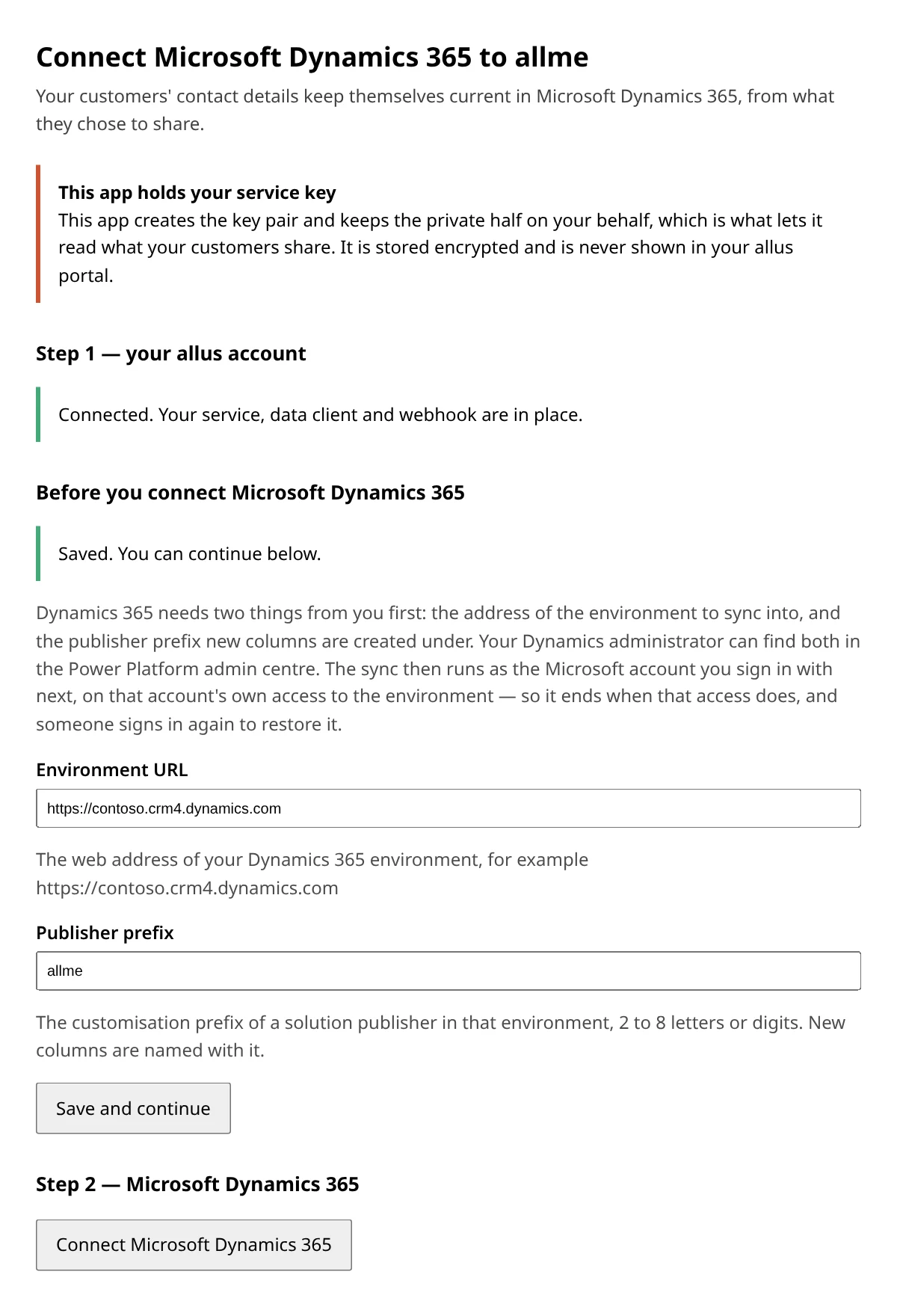
- In the allus portal, open Configuration → Integrations and click Connect next to Microsoft Dynamics 365. The portal creates the service, its data client and its webhook for you — there is nothing to paste — and hands you to this integration's own setup page.
- Before you connect Dynamics 365 — enter your environment URL and publisher prefix, and save. allme needs the environment before it can even build the sign-in link, which is why this comes first.
- Connect Microsoft Dynamics 365 — sign in with the administrator account and consent. That account is the one the sync runs as from here on.
If Microsoft simply does not answer — an outage, or too many requests at once — you are told that instead, because nothing about your details was actually checked. There is nothing to change: wait a few minutes and press Connect again.
What lands in Dynamics
| What the customer shares | Where it goes on the Contact |
|---|---|
| First name | First Name |
| Last name | Last Name |
Email | |
| Phone | Mobile Phone |
| Address | The Address 1 block — street, city, postal code, state, country |
| Anything else your service asks for | A custom column named after your field, created on connect |
| A withdrawn field | The column is emptied, and a note records what was withdrawn and when |
| An ended connection | A note on the contact. The record itself is never deleted or blanked |
How an existing contact is matched
The first time a customer connects, allme looks for a contact that is already theirs — by allme ID, then by email (Email, Email 2, Email 3), then by phone (Mobile Phone, Business Phone, Home Phone). A match is used only when it is unique. If two contacts match, allme creates a new one instead of guessing — a duplicate you can merge is recoverable, writing one person's details onto another's record is not.
+31612345678); Dynamics stores whatever was typed. So a phone match often misses and a new contact is created — deliberately, for the same reason as above.Documents and signed flows
When your company shares, updates or removes a document for a customer, when the customer signs it, or when they complete a contract flow with your company, the event shows up on their contact's timeline — a note naming the document, its kind and the date, or for a status change (signed, accepted, cancelled) and a completed flow, a task naming what happened and when. No document bytes ever reach Dynamics — only the fact that something changed.
This needs no setup on your side: it activates automatically once your integration is fully connected.
Limits worth knowing
- Sync is one-way. Editing the contact in Dynamics never changes the customer's allme profile, and the next update from allme overwrites what Dynamics held for that field.
- Rate limits are yours, and allme stays well inside them. Dynamics allows 6,000 requests per five minutes; allme paces itself far below that and backs off when Dynamics asks it to, so a bulk edit never spends your allowance.
- The connection is tied to the account that made it. Dynamics signals nothing when consent is withdrawn or the connecting administrator loses access, so allme finds out on its next write and shows The CRM refused our access on your sync status page, with a Reconnect action. Nothing is lost meanwhile — the updates that could not be written are applied once someone reconnects.
Next
CRM integrations overview · How the connection model works · Configuring what your service asks for