Freshsales
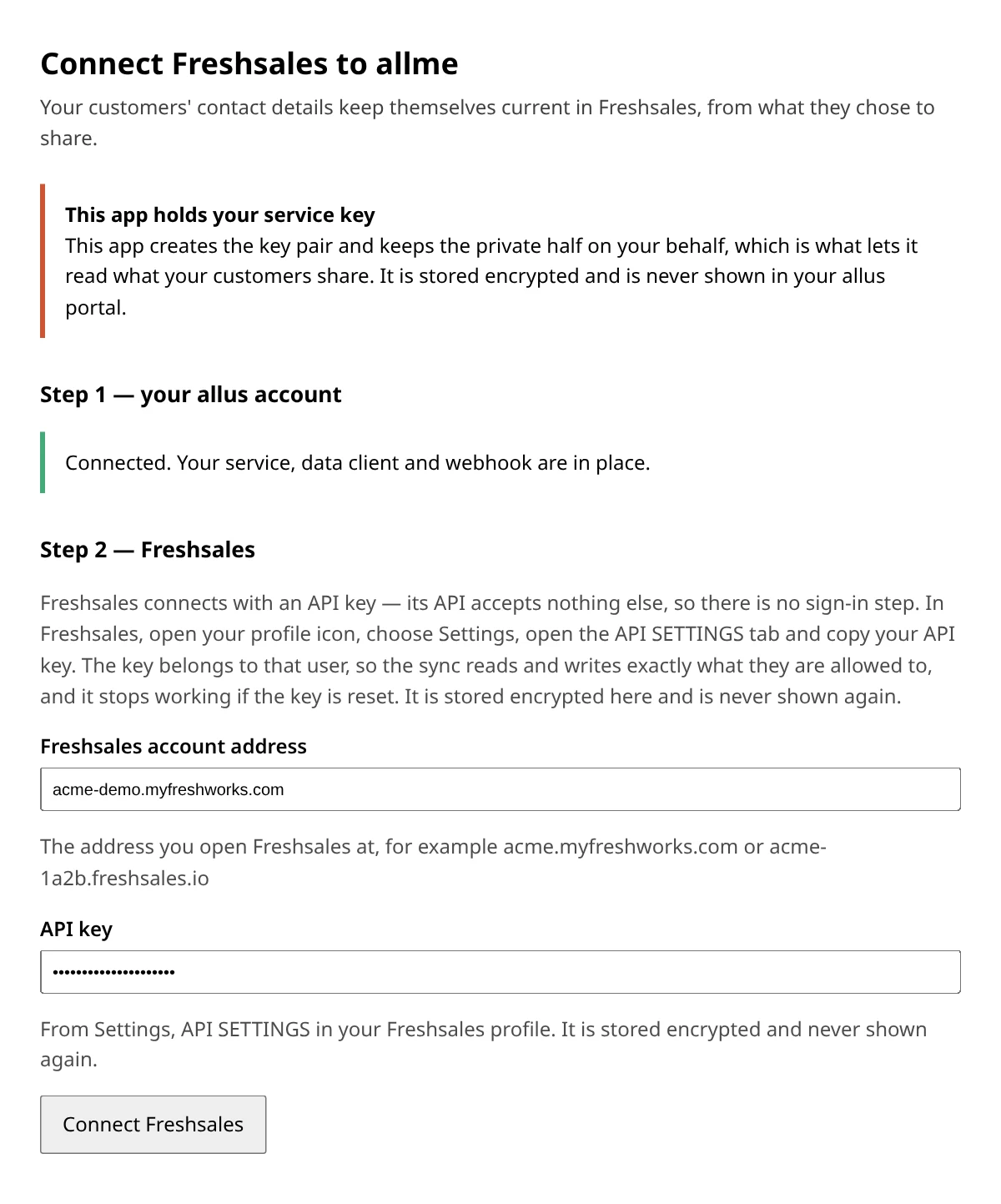
Your customers' contact details keep themselves current in Freshsales, from what they chose to share. Freshsales is the one CRM here that connects with an API key instead of a sign-in — its API accepts nothing else — and it has one other quirk worth reading before you start: extra fields have to be created by hand.
Before you start
You need two things, both from your own Freshsales account:
- Your account address — the address you open Freshsales at, for example
acme.myfreshworks.comoracme-1a2b.freshsales.io. Either form is fine; use whichever one your browser shows. - An API key — in Freshsales, click your profile icon, choose Settings, open the API SETTINGS tab and copy Your API key.
Step 1 — choose whose key you use
There is nothing to install inside Freshsales and nothing to register there. The sync runs as the Freshsales user whose API key you paste, which is worth one moment's thought before you copy one:
- It sees exactly what that user sees. The contacts and notes it can read and write are the ones that user's permissions allow.
- Resetting that key ends the connection. The API SETTINGS tab has a Reset Key button, and it disconnects every integration using the old key — ours included. Your status page then shows The CRM refused our access with a Reconnect action; paste the new key there and the sync resumes.
- Choosing a long-lived account rather than a departing colleague's is the whole of the advice here.
Step 2 — connect
- In the allus portal, open Configuration → Integrations and click Connect next to Freshsales. The portal creates the service, its data client and its webhook for you — there is nothing to paste — and hands you to this integration's own setup page.
- Connect Freshsales — paste your account address and your API key, and press Connect.
If Freshsales simply does not answer — an outage, or too many requests at once — you are told that instead, because nothing about your details was actually checked. There is nothing to change: wait a few minutes and press Connect again.
What lands in Freshsales
| What the customer shares | Where it goes on the contact |
|---|---|
| First name | First name |
| Last name | Last name |
| The contact's email address | |
| Phone | Mobile number |
| Address | The address block — street, city, state, zipcode, country |
| Anything else your service asks for | A custom field you create — see below |
| A withdrawn field | The field is emptied, and a note records what was withdrawn and when — except first name, last name and email, see Limits |
| An ended connection | A note on the contact. The record itself is never deleted or blanked |
allme also fills the contact's External ID with the customer's allme share code. That is how a record is found again on every later update, so leave it to allme — if you already use External ID for another system, that other system and allme will overwrite each other.
Documents and contract flows on the timeline
When you send a customer a document, or run a contract flow with them, the contact’s Freshsales notes show what happened — automatically, with no setup.
- A document shown, updated, or removed leaves a note naming it and the date.
- Signing, accepting, or cancelling a document leaves its own note — a signature note also names how it was confirmed (biometric, 2FA, email, or a custodian for a minor).
- A completed contract flow leaves a note naming the flow and the date it finished. Interim steps of a flow do not appear — only the finished run.
Freshsales has no separate activity object the app needs, so all of this rides the same notes a field withdrawal or a disconnect already writes to — including the duplicate-note limit below.
Extra fields are created by you
- Open your sync status page. Any field still waiting is listed as needs an admin, with the exact label to use beside it — something like
Account reference (allme:account_ref). - In Freshsales, add a text field to the contact with exactly that label, punctuation included. The label is what allme looks the field up by, so a shortened or prettier one will not be found — and it has to be a text field, because a customer's answer is their own free value and a number, dropdown or date field would reject it.
- Leave it there. The next sync finds the field and starts filling it on its own — there is nothing to press, and the values shared meanwhile are not lost: they land the moment the field exists.
A field of the wrong type is treated exactly like one that is not there yet: the row keeps saying needs an admin, the values stay held, and allme picks the field up as soon as a text field carries that label.
How an existing contact is matched
When a customer connects, allme looks for a contact they already have in your Freshsales, in this order:
- allme's own External ID — a contact allme wrote before is always found again this way, which is what keeps later updates on the same record.
- Their email address, matched exactly.
More than one contact matching means a new contact, not a guess. If two of your contacts share the customer's email address, allme does not choose between them and has no second signal to fall back on — it creates a new contact.
A customer sharing more than five email addresses gets a new contact too. Freshsales searches one address per request, so a service asking for a long list of email fields would spend a large part of your hourly allowance on a single customer. Past five, allme does not search at all — searching only some of them and matching on those would be a guess across the addresses it never looked at, which is the wrong match this whole order exists to avoid.
Limits worth knowing
- First name, last name and email are required. Freshsales refuses to create a contact without both name parts and at least one way to reach the person, so allme marks all three as required on your connect screen — customers must share them to connect. A customer who connected before that, or who declined a later consent, may still arrive without one: their record waits until the value arrives rather than being written half-formed or refused.
- Those three fields cannot be emptied by a withdrawal. Freshsales will not hold a contact without them, so if a customer withdraws one, allme keeps the value on the record and writes a note saying exactly that. Every other field is emptied as usual.
- Sync is one-way. Editing the contact in Freshsales never changes the customer's allme profile, and the next update from allme overwrites what Freshsales held for that field.
- A note can appear twice. Freshsales notes carry no key allme can address, so if a delivery is retried the same note may be written again. Nothing is lost; there is simply an occasional duplicate line — the same limit covers a document or contract-flow note.
- Rate limits are yours, and allme's own use is capped. Freshsales allows around a thousand API requests an hour for the whole account. A single sync pass never spends more than 41 of them, whatever your service asks for, so the regular five-minute sync accounts for under 500 an hour — a worst case, not a typical one, leaving the larger part of your allowance to everything else. A burst of changes can add extra passes on top of that, each capped the same way, and allme backs off whenever Freshsales asks it to.
- Freshsales signals nothing when a key is reset. allme finds out on its next write and shows The CRM refused our access on your sync status page. Nothing is lost meanwhile — the updates that could not be written are applied once you paste a new key.
- A key that works but is not allowed enough is reported differently, on purpose. If Freshsales accepts the key but will not let that user read or write what allme needs, your status page shows The CRM refused the change rather than asking you to reconnect — pasting another key from the same user would fail the same way. Give that user access to contacts and contact fields in Freshsales, or connect with a key from someone who has it.
Next
CRM integrations overview · How the connection model works · Configuring what your service asks for